
This article applies to:
- MailMarshal (SEG) Cloud
- DKIM signing
Question:
- What are the required steps for a customer to enable DKIM signing of outgoing messages in MailMarshal Cloud?
Procedure:
To set up DKIM signing:
- A DKIM key and selector is automatically created when a domain is added. To retrieve or change this information:
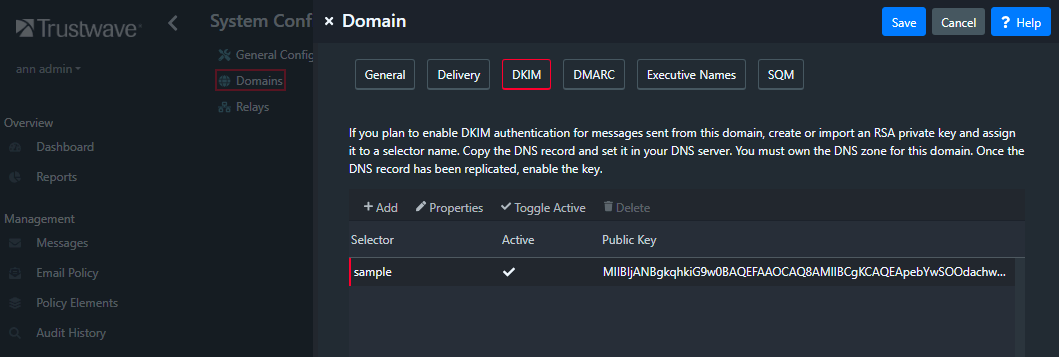
- In the MailMarshal Cloud Console, see System Configuration > Domains > (edit a domain) > DKIM.
- To review the information for an existing key, click Properties.
- To add a new key or import an externally generated key, click Add.
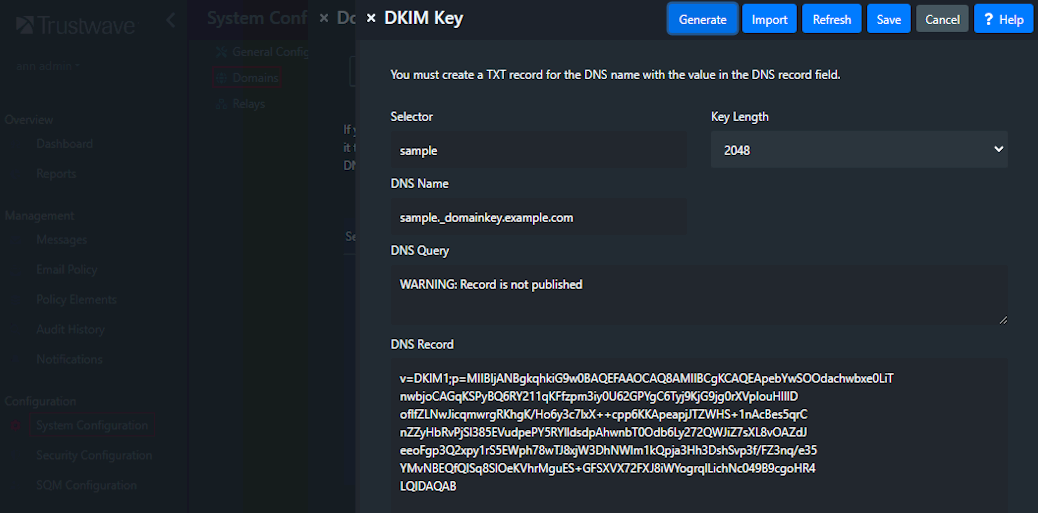
- Copy the DNS Name and DNS Record information.
- If you added a key, click Save.
- You must create DNS records using the information provided (see below).
- After the DNS records are created, wait for them to be publicly available (normally within a few hours). You can check availability by returning to the domain page and editing the DKIM Key. You should see DNS Record successfully retrieved. You can also check the record using Google Public DNS at 8.8.8.8.
- Once the record for a domain is available, select it on the domain DKIM tab, and click Toggle Active.
Signing
A DKIM signature is applied to all outgoing messages where DKIM is configured for the domain and a selector/key is active.
- Signing is requested by the rule Global Policies - Domain Reputation Services (Outbound): DKIM Sign Email.
- Signing is applied at the end of content processing.
Creating the DNS record(s)
A DNS Resource Record is required for each local domain from which you are planning to send DKIM signed messages.
Copy the information created in the MailMarshal Cloud Console for each domain.
In your DNS provider interface, expand the zone for the desired local domain, and add a resource record of type TEXT. Name the record with DNS Name you copied. The name of the record should be like yourselector._domainkey.yourdomain.com
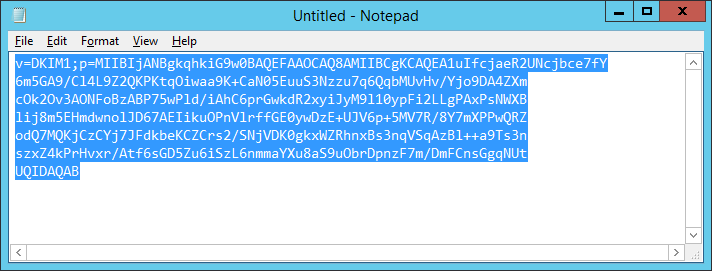
Paste the DNS record text. The text of the record may include more than one line.
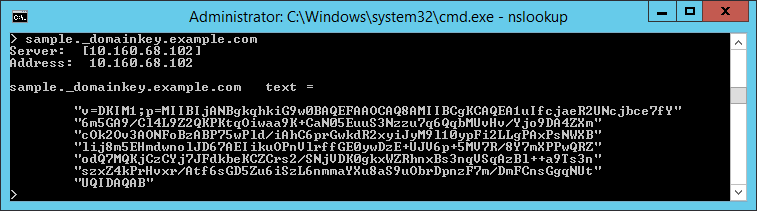
- 2048 bit keys are longer than the permitted line length for many DNS servers. Long keys generated by MailMarshal Cloud are formatted with linebreaks and can be pasted directly to most DNS servers. However, some DNS software may change the linebreak to a space or make other changes. Be sure to verify the actual DNS record using NSLookup or a web-based DKIM checker.
- The full record will be similar to the below image.
- Looking up the record with NSLookup returns a result as shown below:
MailMarshal Cloud KB article Q21085
Last Modified: March 23, 2026
Highlight