
This article applies to:
- MailMarshal Cloud
- Entra ID Group Import
Question:
- How do I register an application in Azure/Entra to allow group import to MailMarshal Cloud?
- What are the options and requirements for use of imported Entra groups?
Background:
MailMarshal Cloud allows you to retrieve user group information directly from Microsoft Entra ID (formerly known as Azure Active Directory). To connect, you must create an "application" in Entra.
You will enter the Client ID, Tenant ID, and Secret from Entra in the MailMarshal Cloud console
Procedure:
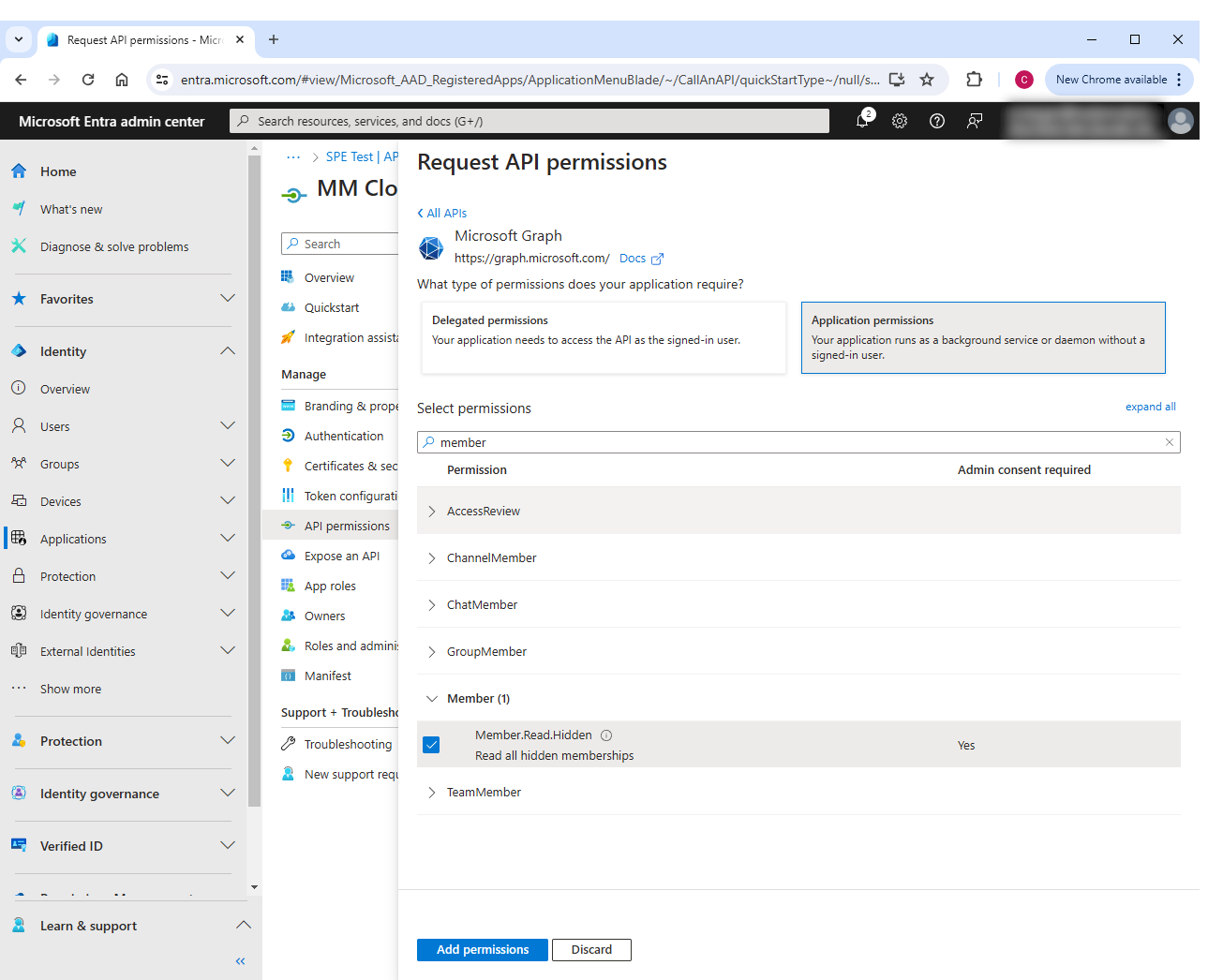
- Be sure you grant Application permissions (not "delegated")
- Be sure to grant admin consent
- Log in to the Microsoft Entra Admin Center (entra.microsoft.com). The minimum required permission is "Cloud Application Administrator"
- If you have access to more than one tenant, use the Settings menu (gear icon in the top bar) to switch to the specific tenant.
- From the left menu browse to Identity > Applications > App registrations. Click New registration.
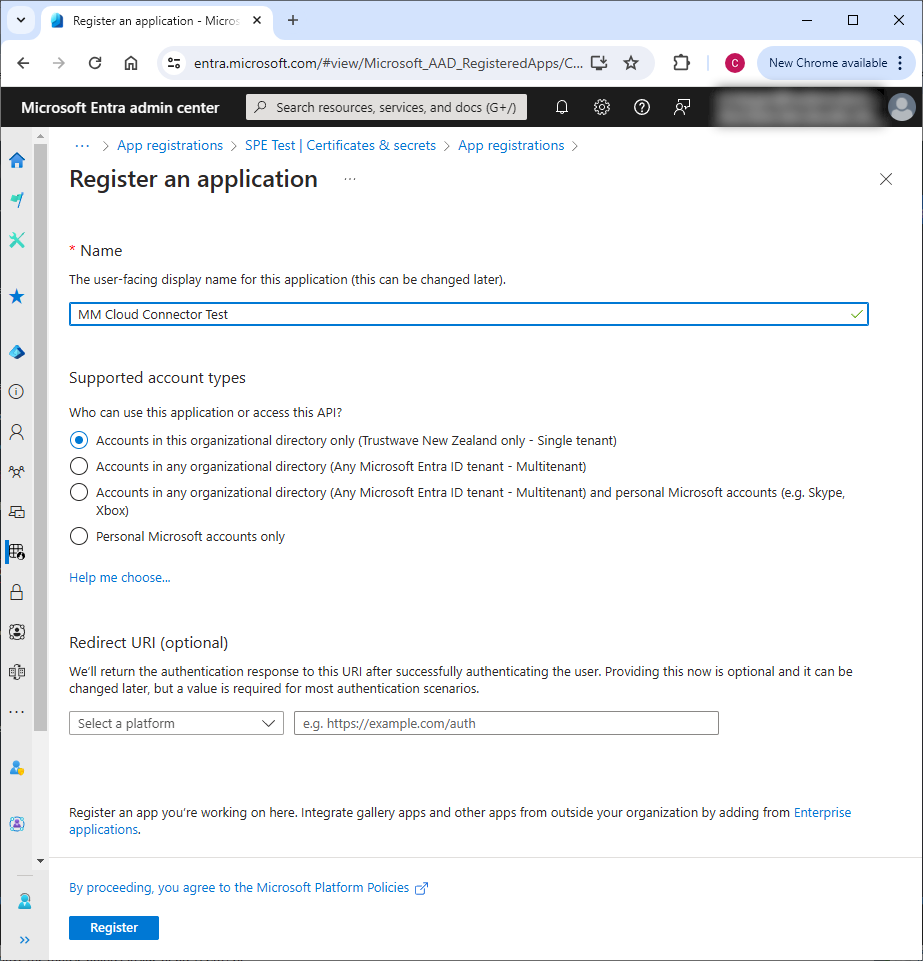
- Enter a name.
- For "supported account types" accept the default (single tenant).
- Click Register.
- From the overview page of the application, note the following values:
- Application (client) ID
- Directory (tenant) ID
- From the API Permissions page of the application, grant the following Microsoft Graph permissions (Application permissions):
- Group.Read.All
- Member.Read.Hidden
- OrgContact.Read.All
- User.Read.All
- After updating the above permissions, click Grant admin consent (above the list of permissions)
- From the Certificates & Secrets page of the application, create a new client secret. Note the value (it is only available immediately after creation).
Group usage:
After creating the connector you can select groups to import using the Import Entra Groups button on the User Groups page.
Groups are populated immediately. Group membership is queried and updated hourly.
- IMPORTANT: Groups retrieved from Entra cannot be used directly in rule User Matching, Digests, or other MailMarshal Cloud features. You must add the Entra groups to local groups, and then select the local groups in User Matching or other features.
- Only "Mail Enabled" groups will be available for import. This means that Dynamic Security Groups cannot be imported, because this type of group cannot be set as "Mail Enabled".
The following options are present on the Entra Connector Properties page:
Additional addresses to retrieve
Set these options to retrieve additional addresses from Entra ID.
- Retrieve Distribution Groups
- Choose this option to retrieve Distribution Group aliases from Entra ID.
- Insert Disabled Users
- Choose this option to include users marked as disabled in the import. (Users associated with distribution lists or other automation are commonly marked as disabled.)
Generic groups to create
Set these options to populate groups with specific types of addreses. The above options do not apply to these groups.
- Use 'All Entra Distribution Groups' User Group
- Automatically create and populate a User Group including Entra distribution groups.
- Use 'All Entra Organizational Contacts' User Group
- Automatically create and populate a User Group including Entra Organizational Contacts.
- Note: Organizational Contacts originate from Exchange Online or hybrid Active Directory. Only contacts with an email address in your configured domains will be present in this list.
MailMarshal Cloud KB article Q21218
Last Modified: July 2, 2026