This article applies to:
- MailMarshal SEG/MailMarshal
- SpamProfiler
Question:
- MailMarshal Receiver slow to start up
- How do I change the timeout setting for SpamProfiler update checking at startup?
Note: For issues with SpamProfiler file downloads timing out, see Q12137.
Background:
When the Receiver starts up, it waits for the SpamProfiler service to be available before completing initialization and reporting ready. - On startup, SpamProfiler checks for updates over the Internet (http://sigupdates.marshal.com/). Downloading and processing of these updates can take a noticeable time, so the Receiver can appear slow to start.
- In versions below 11.3, every Receiver restart also causes a SpamProfiler service restart.
- In version 11.3 and above, restarting a running Receiver does not trigger a SpamProfiler service restart by default, so the restart process is much quicker.
Resolution:
To resolve issues with slow Receiver startup due to SpamProfiler, consider the following:
- Ensure that each MailMarshal processing node can access the required site (http://sigupdates.marshal.com/).
- To configure proxy settings for this connection, in the Configurator see Server and Array Configuration > Array Properties > Internet Access tab.
- Upgrade MailMarshal to the latest version.
- You can change the timeout for the SpamProfiler check with a configuration setting, using the following procedure.
- Caution: if you change the update timeout, SpamProfiler may not update fully and detection performance can be affected.
Procedure:
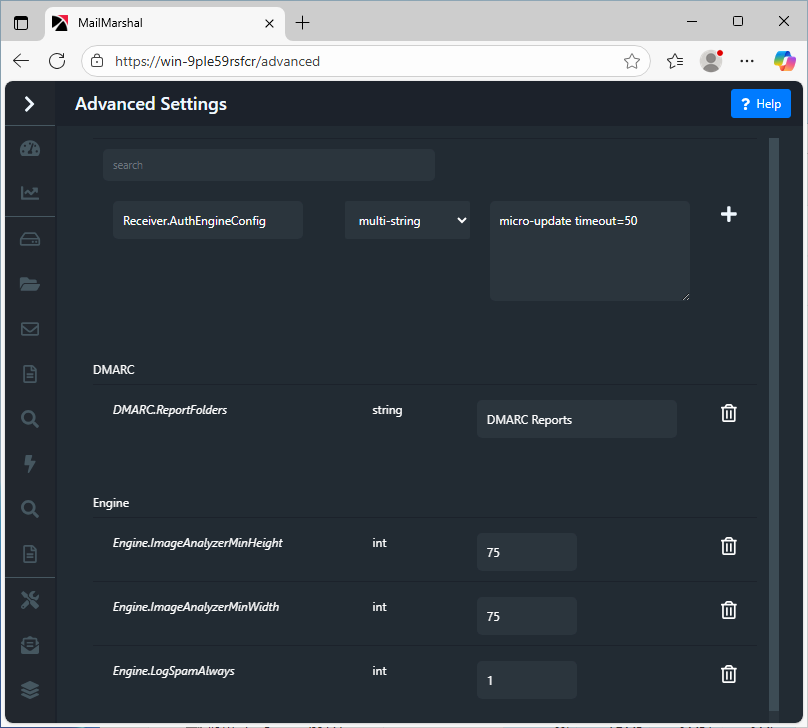
- In the Management Console, navigate to Advanced Settings.
- Add or edit the following value:
- Value name: Receiver.AuthEngineConfig
- Value type: multi-string
- Value data: micro-update timeout=nn (seconds; default if not entered:60)
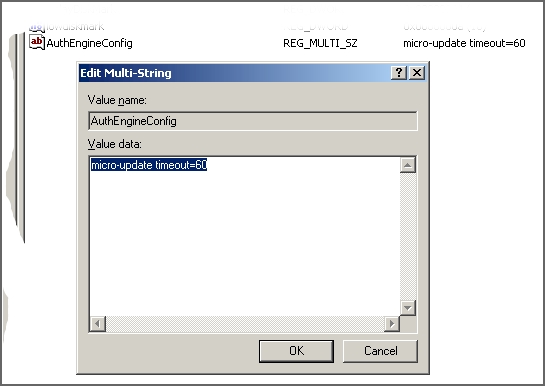
- For version 8.X, on the Array Manager edit the Registry and navigate to the SEG Receiver key:
- In version 8.X: HKEY_LOCAL_MACHINE\SOFTWARE\Trustwave\Secure Email Gateway\Default\Receiver
- For full details of the location for each product version, see article Q10832.
Notes:
- If the Advanced Setting or registry value AuthEngineConfig already exists, you can add this setting. To enter multiple settings in the Value data field, enter one setting per line.
- All SpamProfiler configuration data is case sensitive.
- Warning: Using the Registry Editor incorrectly can cause serious problems that may require you to reinstall your operating system. LevelBlue cannot guarantee that problems resulting from the incorrect use of Registry Editor can be solved. Make sure that you back up your Registry prior to making any changes.