This article applies to:
- WebMarshal 6.X and 7.X
- Edge browser
- Firefox
- Chrome
- Opera
- Safari
- Windows services
Question:
- How do I configure my web browser to use the WebMarshal security certificate?
- How do I configure an application that runs as a Windows service to use HTTPS Root Certificate?
Information:
The WebMarshal HTTPS Root Certificate can be used by any web browser. For help on its installation, see your web browser's help. This article provides guidance for some common browsers.
If you use Edge or other compliant browsers in a Windows domain, the easiest way of setting up the HTTPS Root Certificate is with Group Policy. For details, see the following article:
- Q12014 : How do I push the WebMarshal HTTPS Root Certificate to all users in an organization using Microsoft windows group policy?
If you use other browsers and applications, there are a number of other ways to set up use of the WebMarshal HTTPS Root Certificate.
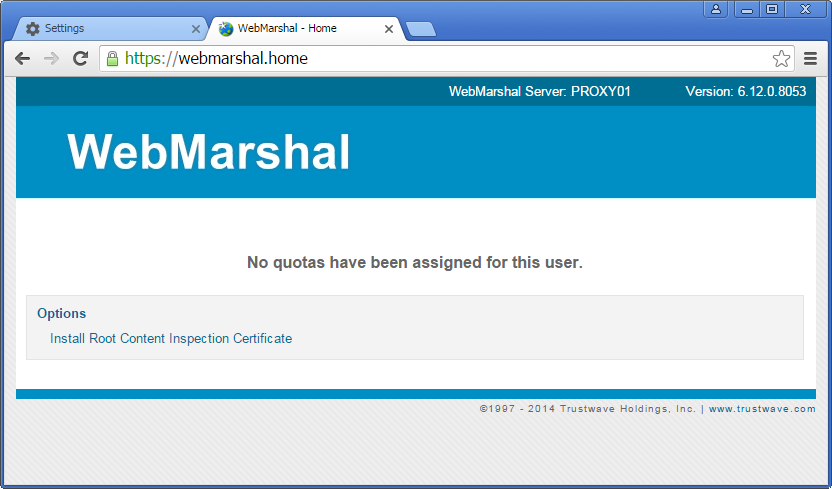
- The recommended way is by accessing the http://webmarshal.home/ website from your web browser. See below.
- The alternative way is to export the WebMarshal HTTPS Root Certificate which is detailed further below.
- For applications that run as Windows services and update over the web, you can import the WebMarshal HTTPS Root Certificate to the Local Computer Certificate Store.
- For the Sun Java Runtime Environment (JRE), you may need to import the WebMarshal HTTPS Root Certificate to the Java Certificate Store.
Edge
Google Chrome
- Click Install Root content inspection certificate. Then click Open file.
- Click Install Certificate and click Next.
- Select Place all certificates in the following store.
- Browse to the Trusted Root Certification Authorities store and click OK.
- Click Next then Finish. Click Yes to the Security Warning.
Note: In some versions of Windows the option 'automatically select the certificate store' does not select the Root store. The above instructions work for all versions as of the date of this article.
Opera
- Click Install Root content inspection certificate.
- Click Install and click OK.
Firefox
- Click Install Root content inspection certificate. Check the Trust this CA to identify web sites box.
- Click OK.
Safari
- Click Install Root content inspection certificate.
- Press CTRL and click the Mouse Button. Click Open.
- Click OK to add the Certificate to the KeyChain for the login.
- Click Always Trust. Enter the Administrators Username and Password.
- Click Lock the Login Key Chain.
Note: Some versions of Safari may not display the http://webmarshal.home/ website correctly.
Other Applications
To allow Windows services to access HTTPS sites through WebMarshal, import the Root Certificate into the Local Computer certificate store.
Note: MailMarshal SMTP does not require this action. For help with MailMarshal SMTP SpamCensor updating, see article : Q11718.
- Click Install Root content inspection certificate. Then click Open file.
- Click Install Certificate and click Next.
- Select Place all certificates in the following store. Click Browse.
- On the Select Certificate Store window, check the box Show Physical Stores.
- From the list, expand Trusted Root Certification Authorities, and select the Local Computer entry.
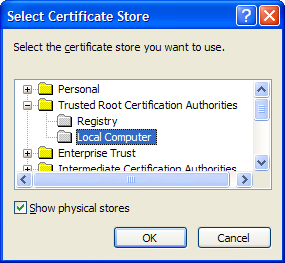
- Click OK.
- Click Next then Finish.
Installing an exported WebMarshal HTTPS Root Certificate
Follow the instructions below if you want to install a HTTPS security certificate that was exported from WebMarshal.
Edge or Chrome
Generally use the system install method mentioned above. For advanced customization of certificates:
- In Edge or Chrome settings, select Privacy, Search, and Services.
- Select Security > Manage Certificates.
- You can choose to manage the system store, or install custom certificates. If you install custom certificates, you may need to install both trusted and intermediate certificates.
Firefox
- In Firefox settings, search for Certificates and click View Certificates.
- Select the Authorities tab.
- Click Import and browse to the certificate exported from WebMarshal.
- Click OK.
Opera
- Open Opera click on Tools and select Preferences.
- Select the Advanced tab and then the Security option in the left pane.
- Click the Manage Certificates button.
- Click Import. Select All Files from the Files of type field. Browse to the certificate exported from WebMarshal.
- Click OK and OK again.
Safari
Safari uses Apple's KeyChain technology for managing Security certificates.