This article applies to:
- MailMarshal Management Console (Windows Authentication)
- Marshal Reporting Console
Question:
- How can users be logged on automatically to Marshal websites?
Background:
When you set up Marshal user interfaces with Windows Authentication, you may want allowed Windows users to be logged on automatically using their Windows account. By default this should occur. However, in some cases users may be prompted to re-enter the information.
Procedure:
To ensure that users are logged in automatically (on Windows systems), configure security settings on each client system.
- From the Windows Control Panel, select Internet Options.
- Click the Security tab.
- Select Local intranet.
- Click Sites, and add the base URLs of the servers to the list of sites.
- To apply the defaults permissions for the zone, click Default Level.
- Alternatively, if you want to customize other settings, click Custom Level. Scroll to the end of the list of settings and select Automatic logon only in Intranet zone.
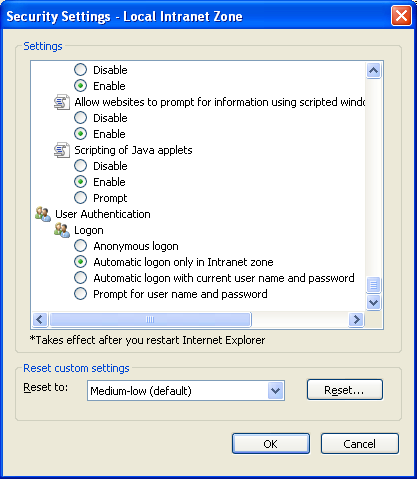
- Click OK to apply the settings and exit the options window(s).
- Chrome uses this setting by default.
- For Edge, navigate to Settings > Profiles > Profile preferences and ensure the "Allow single Sign-on" switch is enabled.
Notes:
- You can also deploy this setting to all users by configuring Windows group policy.
- By default, the Local Intranet zone consists of local domain names in addition to any domains that are specified to bypass the proxy server.
- You can also pass Windows credentials automatically to other zones. However, you should be aware of the security implications of passing this information over the Internet. Also, some proxy servers do not successfully pass this information.
- For Firefox, add sites or domains to the about:config setting network.automatic-ntlm-auth.trusted-uris