This article applies to:
- MailMarshal SMTP
- TLS certificate renewal
Question:
- How can I automate renewal of email TLS certificates?
- How can I automate distribution of updated certificates to processing nodes?
Background:
It is possible to automate certificate generation and distribution using an Automatic Certificate Management Environment (ACME) client.
- ACME clients will automatically renew certificates on a schedule.
- Automation reduces the chances of error, and helps with the newly required more frequent renewal of certificates.
A well known ACME client is Certify the Web. This client requests free certificates from Let's Encrypt by default. It can be used to request certificates from other Certificate Authorities including DigiCert.
Certify the Web provides the ability to deploy the generated certificates in PEM files as required by MailMarshal.
This article describes the required workflow with reference to Certify the Web. Other ACME clients are available with similar functionality.
Procedure:
Install Certify the Web on the MailMarshal Array Manager.
- Certify is free for evaluation only. Before using this application for production, license the application.
On the Settings page you can select one or more certificate authorities to use.
To set up a certificate:
Begin creating a new certificate.
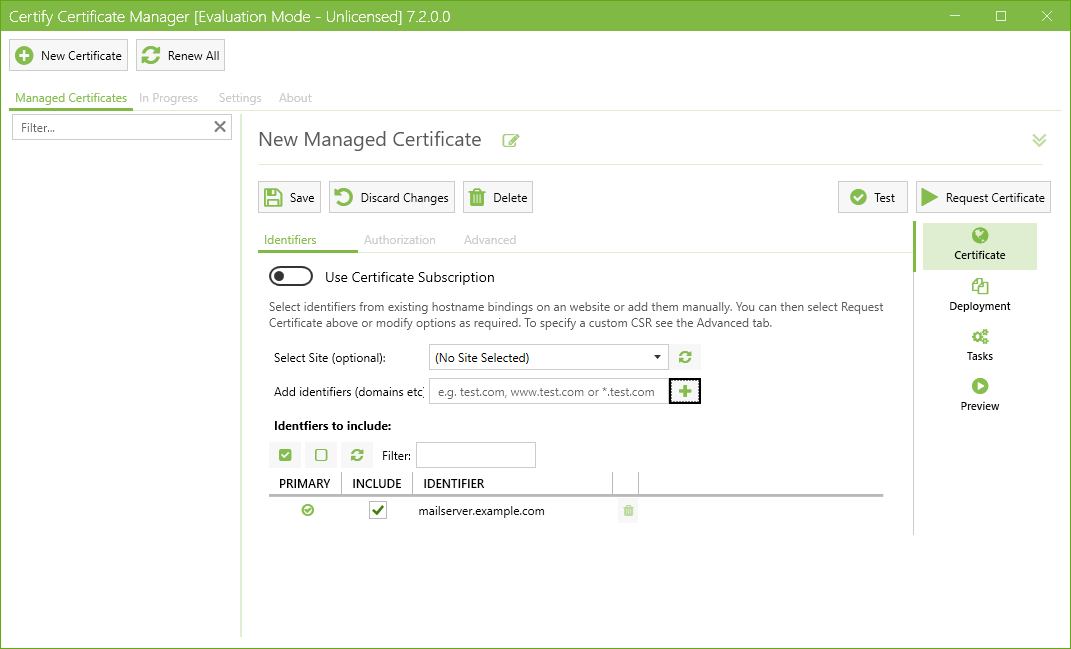
Manually enter the required list of domains or domain wildcards.
On the Authorization page, select the "dns-01" challenge type. This type is required where the certificate is not bound to a local website.
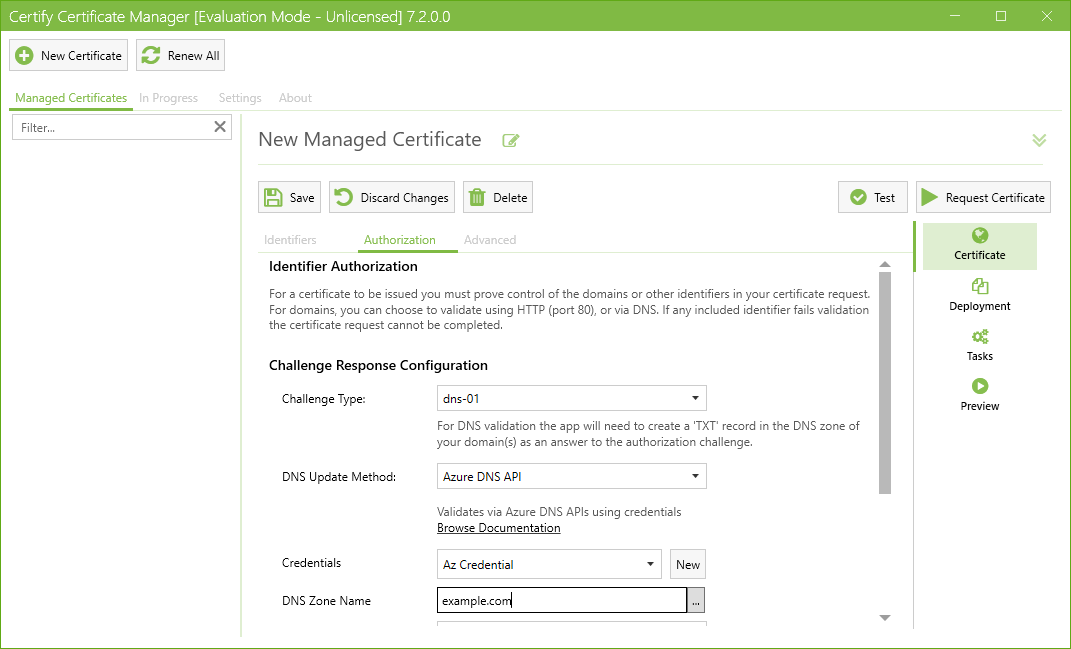
- This authorization type requires you to grant Certify the ability to create TXT records in the DNS zone of the domains that you will be creating certificates for. To accomplish this, Certify includes API clients for many DNS providers such as Azure, GoDaddy, and Google.
- See Certify documentation for the selected API, linked from the page in the Certify client.
- Test the credentials.
- Once the credential test is successful, you can generate a certificate and verify that it is correct.
To distribute the certificate to MailMarshal nodes:
MailMarshal requires the certificate and its key to be in two files: cacert.pem and privkey.pem.
You can create a deployment task to place these files in the Config folder of the Array Manager. They will be automatically distributed to the nodes.
- It is not necessary to restart node services. The certificate is retrieved from disk for every use.
- Certificates distributed in this way are not immediately validated by MailMarshal. Before configuring automatic distribution of the generated certificates, validate that they include the required SAN entries.
In Certify the Web, create a deployment task of type "Deploy to Generic Server (multi-purpose)"
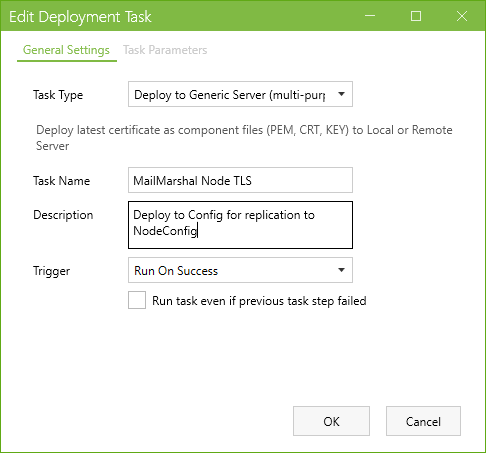
- The trigger type for production is "Run on success"
On the Parameters page:
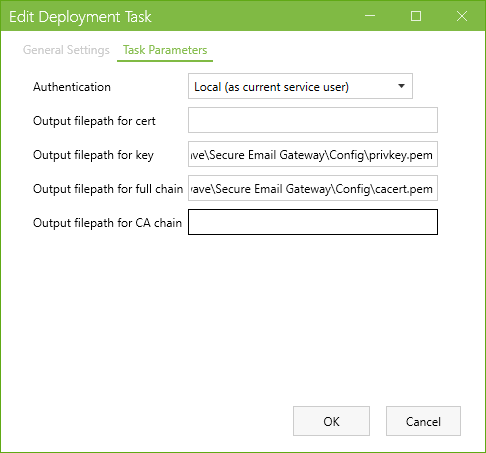
- Save the key as privkey.pem in the config path, by default C:\Program Files\Trustwave\Secure Email Gateway\Config\
- Save the full chain as cacert.pem in the config path
- MailMarshal does not require the other outputs.