This article applies to:
Question:
- How do I use the Support Tool for MailMarshal SPE?
Information:
The Marshal support tool has been developed to help the LevelBlue Technical Support team gather information about a MailMarshal SPE installation. The tool produces a single .zip file that contains essential information to help the support team debug specific issues.
The tool can gather information about MailMarshal SPE, MailMarshal SEG, IIS, Marshal virus scanners, and the Connector Agent.
- Note: For help with the Support Tool for other LevelBlue email products (MailMarshal SEG, LevelBlue ECM, WebMarshal, and MRC), see Q15024.
Installation
The tool is included in current installations of SPE and MailMarshal. You can also download the latest version manually if necessary from https://www.marshal.com/supporttool/download (right click, save as. You may see a security warning). The tool will also attempt to update itself automatically, as noted below.
- The current version of the tool is packaged with .NET runtimes and does not have any software prerequisites.
Using the tool
Repeat the following steps on each server of interest, as directed by Technical Support.
- Copy the tool to the server.
- Double click to run the tool.
- Note: On startup, the tool checks for updates to functionality. This feature requires access to the URL http://www.marshal.com/supporttool/download
- If the tool cannot connect to check for updates, it raises a warning.
- If necessary, retrieve the latest version manually as described above.
- The main window of the tool (latest version 2.x) appears as shown below. This interface is simplified compared to earlier versions. The data gathered is the same.
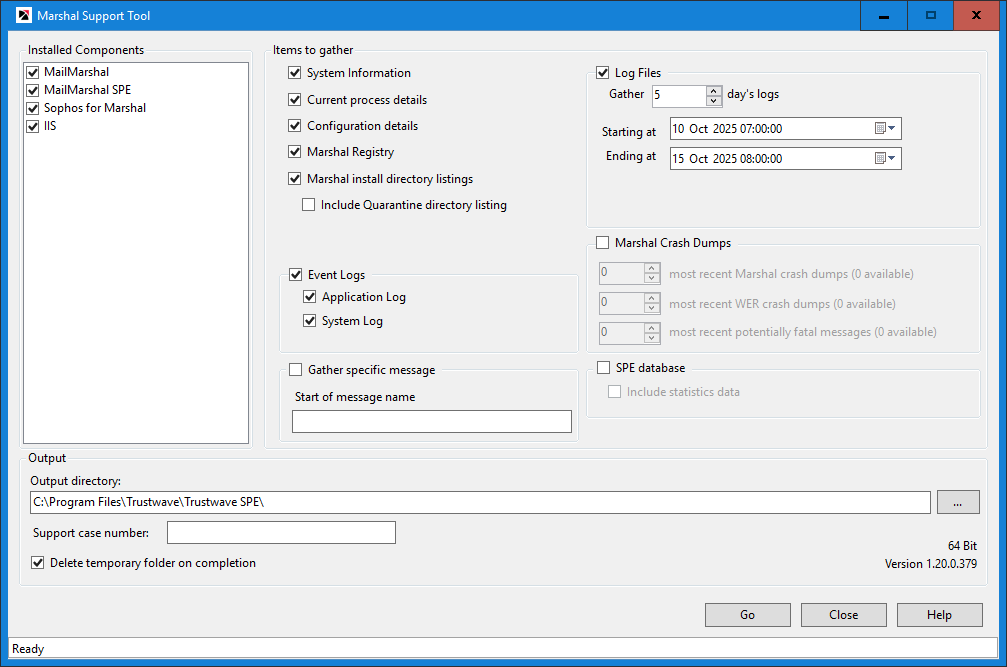
- For reference, a screenshot of the earlier version of the tool is provided at the end of this article.
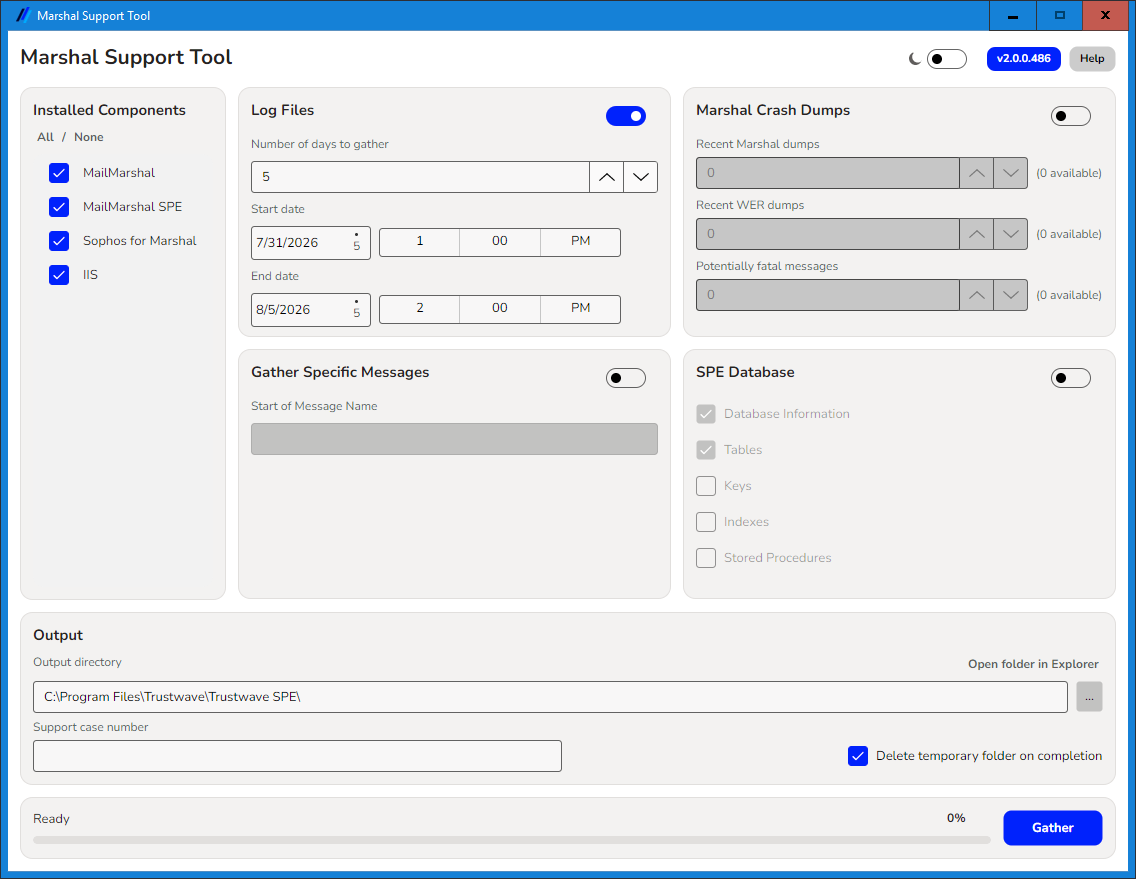
- Select the items to include, as directed. Clear the selections for items you do not want to include. See below for explanations of each selection.
- Choose an output directory.
- Click Gather to run the tool. The tool gathers data into a folder, and then creates a single compressed file.
- NOTE: This tool can require significant disk space, particularly if you include the SPE database statistics data. In rare cases it could consume all available space. If not enough space is present, the tool raises a warning: Not enough free space available to package into zip file.
- The status bar at the bottom of the window shows the progress. You can cancel the process if necessary.
- When the tool is finished, click Close to exit.
- Upload the file to LevelBlue as directed by Technical Support.
- Note: Wait for the tool to create the zip file. (The tool creates a temporary folder and then zips the content. Do not zip the folder manually - it will not contain all required items.)
The fields on the window are defined as follows:
- Dark/Light mode
- Version 2.0 provides an optional dark theme for the interface. Use the slider at the top to select the theme.
- Version
- Shows the version of the Support Tool.
- Installed Components
- Shows the related software that is installed on this computer. Select the components for which you want to include detailed information such as logs and configuration details.
- Installation logs (if any) are gathered for all selected components regardless of other selections.
Items to gather
- Gather specific message
- Attempts to include one or more mail message or Sent History files. Enter the first few characters of the message name (for example B89f00). This option is only available when running the tool on a MailMarshal processing node.
- Log files
- Includes the text log files generated by the selected components. By default the last 5 days of logs are included. Use the menus to select the range of dates to include.
- NOTE: A minimum of 2 days is recommended to ensure that at least one file of each type is included.
- Marshal Crash Dumps
- Includes one or more types of diagnostic information. Shows the number of each type that are available.
- Select the number of each type to include. The default is 1 of each available type. The most recent available are included.
- Most recent Marshal crash dumps
- Includes
.mdmp files created by the selected components when recovering from an error. - Most recent WER crash dumps
- Includes the Windows Error Reporting data from the recent issues.
- Most recent potentially fatal messages
- Includes email message files that are marked as suspect because they were being processed at the time of a crash.
- SPE database
- Include the SPE configuration and logging data as CSV files.
- Warning: Only select these items if directed by LevelBlue Support. Including the SPE database data can result in a very large file. In some cases it could consume all available disk space. If not enough space is present, the tool raises a warning: Not enough free space available to package into zip file.
In addition to the above items, the following are always gathered by version 2 of the tool:
- System Information
- Includes a listing of the system hardware and operating system information. 8.3 file naming settings are included.
- Current process details
- Includes a listing of processes running on the server.
- Configuration details
- Includes the XML or text files that define configuration of the selected software.
- Marshal Registry
- Includes a copy of the registry hive for all components that are present on the server.
- Marshal install directory listings
- Includes file and version information for files in the installation directories of all selected components.
- Event logs
- Includes Windows Event Log information.
Output
- Output Directory
- Enter the location where the compressed file should be created. The default location is the desktop. Click [...] to browse the local computer.
- Support case number
- Enter the case number as provided by Technical Support.
Notes:
- This tool simply gathers existing information from the system and logs.
- There is no need to restart any services before or after running the tool (unless specifically requested by Technical Support).
- The tool does not affect any running services and it does not require any downtime.
- The tool runs as Administrator to ensure full access on servers where UAC is enabled.
- The tool is able to gather information for current versions of all components.
- The current version of the tool does not offer automatic upload. Support will provide instructions to upload to the LevelBlue Portal.
- The previous version of the tool appears as below: