This article applies to:
Question:
Logging into the R3000, but the Java applet is not loading. What should I do?
Reply
If using browsers IE, Firefox or Safari for Vista, XP, or Macintosh you must enable Java.
see below the instructions for the various browsers:
IE
If the java login prompt does not appear, check to see if java is enabled on your vista or xp operating system.
NoteThis information also applies to Internet Explorer running on Windows Vista, Windows XP Service Pack 2, and
Windows Server 2003.
Applies to all editions of Windows Vista.
Once Java is installed, you can enable or disable it by following these steps:
To enable or disable Java
1. Open Internet Explorer by clicking the Start button , and then clicking Internet Explorer.
2. Click the Tools button, and then click Internet Options.
3. Click the Advanced tab.
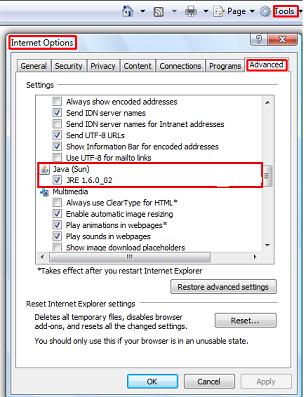
4. If Java is installed, there will be a Java section in the Settings list. To enable Java, select the option under Java. To
disable Java, clear the option under Java. When you are finished, click OK.
Notes
The Java section mentioned in step four above will only be present if you have the Java software installed. If you do not
see the section, download Java software from Java.com.
To remove the Java software from your computer, uninstall it by using Uninstall or change a program in Windows Control Panel.
Firefox:
Firefox:
Firefox 0.8 and Up
Start Mozilla Firefox browser or restart it if it is already running.
Select Tools > Options.
Dialog box: Options
Click Content > Select Enable Java
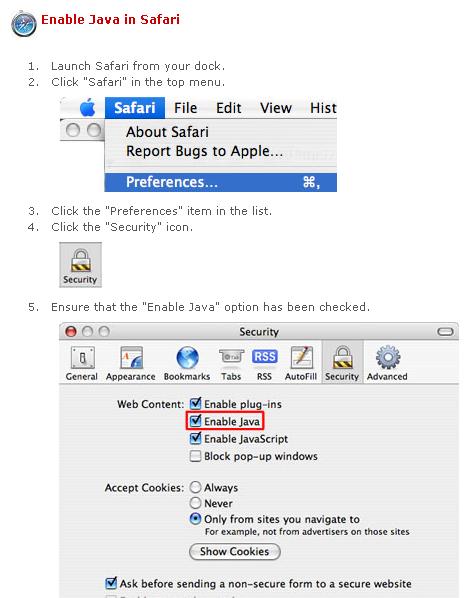
Safari
- This article was previously published as:
- 8e6 KB 286875
