This article applies to:
- R3000
- Enterprise Reporter
- Threat Analysis Reporter
Question:
- How can I view DMI event log
Procedure:
To view the DMI log, please use the following procedure.
1) Reboot the system, when the Supermicro logo is displayed press the delete key to go into the BIOS setup menu.
2) Using the arrow keys, move over to the right to highlight 'advanced' menu and press enter. See attached photo 'advanced_menu' for an example of this menu.
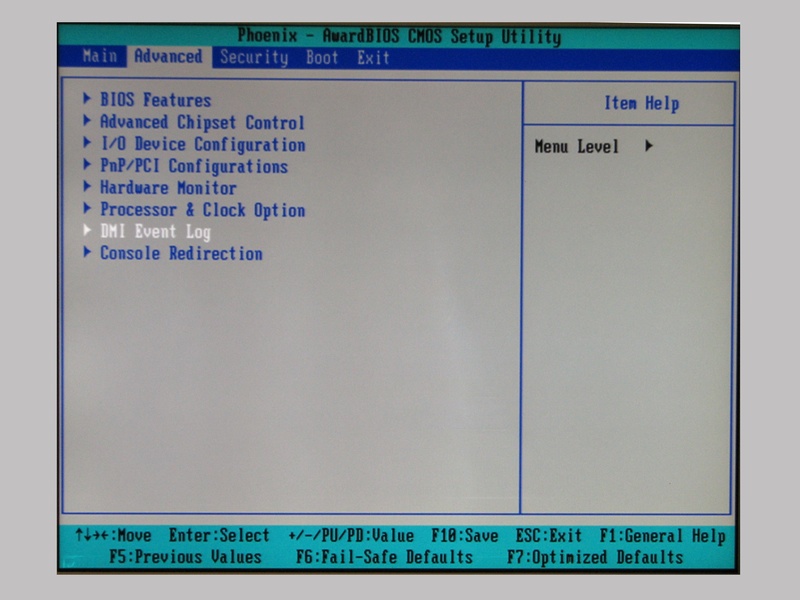
3) Using the arrow keys, move down to the 'DMI event log item', and press enter. See attached photo 'view_log' for an example of this menu.
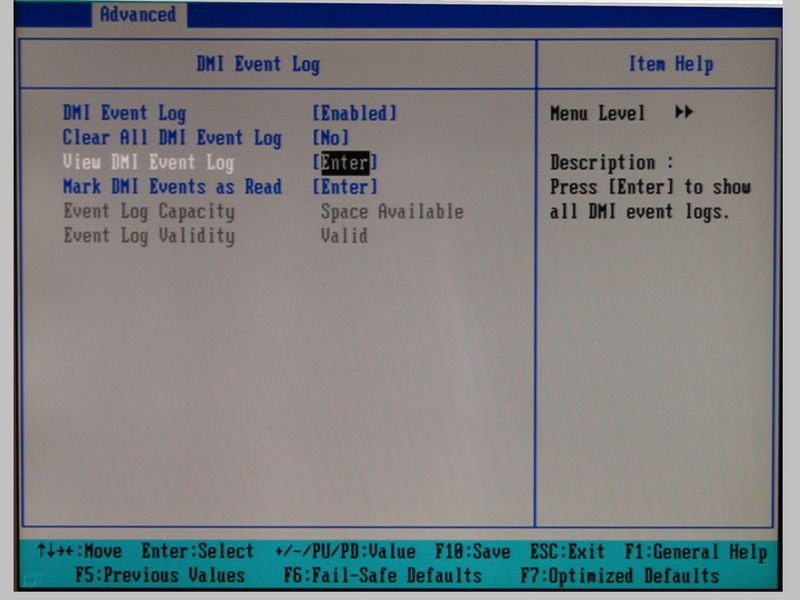
4) Using the arrow keys, move down to the 'View DMI event log' choice, and press enter. A pop-up window will be displayed, Look for any memory errors. These would say something like ECC error or similar.
5) To exit from the BIOS setup, press the escape key 3 times, this will take you to the exit menu. Use the arrow keys to move down and select the 'exit without saving' choice, and press enter. A popup window will appear with the confirmation question "quit without saving?". Type a Y and press enter to confirm. The system will reboot.
