This article applies to:
- Web Filter (WF/WFR/R3000/IR)
Symptoms:
- After entering login credentials filter UI does not load, it gives a blank grey screen.
Causes:
- Starting in Firefox 3.6 you need the new Java plugin that is included in Java 6 Update 10 and above. If you are using an older version of Java, you will need to update your Java plugin.
Resolution:
Steps to Enable Plug-in for the Internet Explorer browser
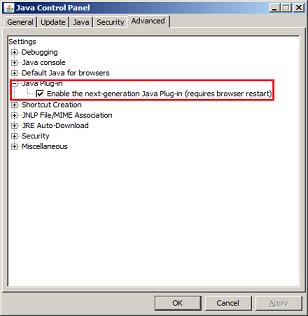
1. Go to Start > Control Panel > Java Control Panel > Advance tab > Java Plug-in
2. Select the check box for Enable next-generation Java Plug-in.
3. Click OK and restart the system.
Steps to Enable Plug-in for the Firefox 3.6 and above
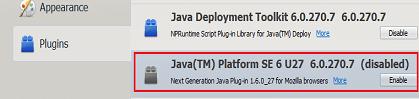
1. Launch the Firefox browser
2. Click on the Tools > Add-ons Manager > Plugins > Java plugin
3. Click on the Enable button if the Java Plugin is disabled
4. Restart the browser
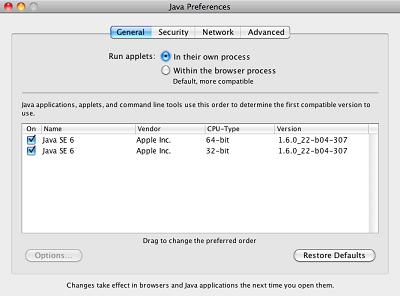
Enable next-generation Java Plug-in - Mac OS X
If there are problems viewing Java applets on Mac OS, make sure the next-generation Java Plug-in is enabled.
Note: By default the next-generation Java Plug-in is not enabled on Mac OS.
Steps to Enable Plug-in on Mac
1. Upgrade to latest version of Java for Mac OS.
2. Open Java Preferences application window.
3. Select setting Run applets: in their own process
4. Restart browser and try viewing the applet.
After enable Plug-in if the problem does not get resolve, you may need to update Plug-in
Steps to Update Plug-in for the Firefox 3.6 and above
1. Launch the Firefox browser
2. Click on the Tools > Add-ons Manager > Plugins > Check to see if your plugins are up to date
3. Click on the Up to Date button
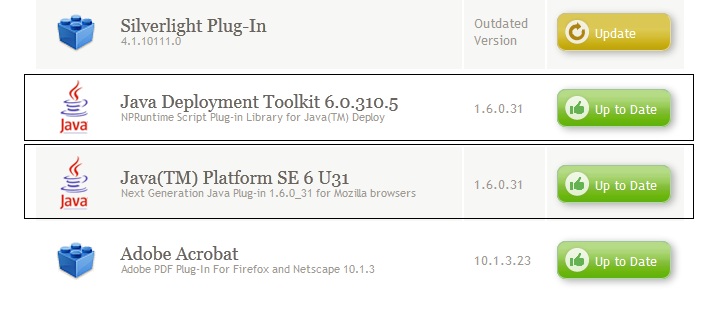
4. Click on the Verify Now link, to install missing Plug-in
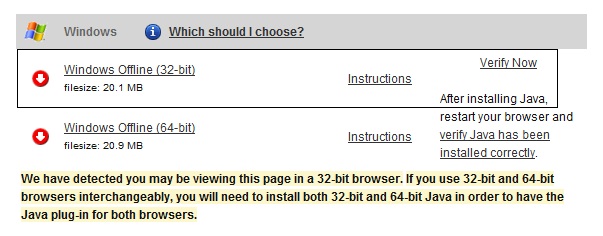
5. Restart the browser.
