
LevelBlue + SentinelOne: Global Partnership to Deliver AI-Powered Managed Security Operations and Incident Response. Learn More

LevelBlue + SentinelOne: Global Partnership to Deliver AI-Powered Managed Security Operations and Incident Response. Learn More

Services
Cyber Advisory
Managed Cloud Security
Data Security
Managed Detection & Response
Email Security
Managed Network Security
Exposure Management
Security Operations Platforms
Incident Readiness & Response
SpiderLabs Threat Intelligence
Solutions
BY TOPIC
Offensive Security
Solutions to maximize your security ROI
Operational Technology
End-to-end OT security
Microsoft Security
Unlock the full power of Microsoft Security
Securing the IoT Landscape
Test, monitor and secure network objects
Why LevelBlue
About Us
Awards and Accolades
LevelBlue SpiderLabs
PGA of America Partnership
Secure What's Next
LevelBlue Security Operations Platforms
Security Colony
Partners
SentinelOne
Advancing integrated, intelligence‑driven security operations
Microsoft
Unlock the full power of Microsoft Security
Technology Alliance Partners
Key alliances who align and support our ecosystem of security offerings
Partner Portal
Loading...
Loading...

HOWTO: How to analyze internet usage from the Web Filter

Expand / Collapse


This article applies to:

  • WFR

Question:

  • How to analyze internet usage from the Web Filter

Procedure:

The Usage Graph window can be accessed by Logging into the Filter and going to Reporting >Usage Graph.

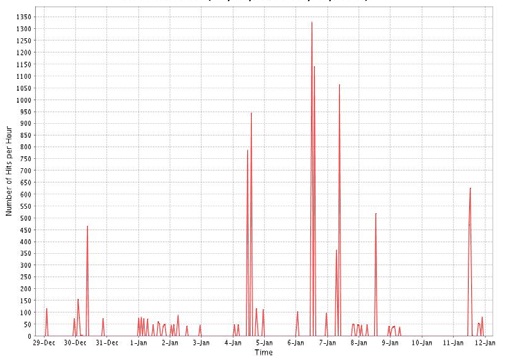
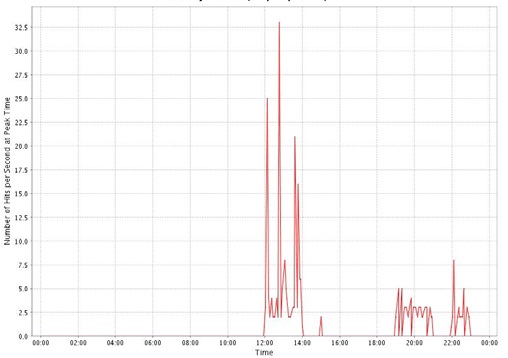
This window is used for viewing and analyzing Internet usage data for a specified time period within the past 14 days. The following data can be analyzed for the given time period: number of URLs accessed by end users, number of machine IP addresses accessing the Internet, and number of end users who have been authenticated (if using the authentication feature)

There are two sets of graphs that can be viewed under this option:

1. The Recent Trend graph includes date range, and Number of Hits per Hour for a given date.
2. The Daily Peaks graph includes the date, and Number of Hits per Second at Peak Time for a given Time using the HH:MM format

To contact LevelBlue about this article or to request support:


Rate this Article:
     

Add Your Comments


Comment submission is disabled for anonymous users.
Please send feedback to Trustwave Technical Support or the Webmaster
.