
LevelBlue Named Official Cybersecurity Advisor of the PGA of America. Learn more

LevelBlue Named Official Cybersecurity Advisor of the PGA of America. Learn more

Services
Cyber Advisory
Managed Cloud Security
Data Security
Managed Detection & Response
Email Security
Managed Network Infrastructure Security
Exposure Management
Security Operations Platforms
Incident Readiness & Response
SpiderLabs Threat Intelligence
Solutions
BY TOPIC
Offensive Security
Solutions to maximize your security ROI
Operational Technology
End-to-end OT security
Microsoft
Unlock the full power of Microsoft Security
Securing the IoT Landscape
Test, monitor and secure network objects
Why LevelBlue
About Us
Awards and Accolades
LevelBlue SpiderLabs
PGA of America Partnership
Secure What's Next
LevelBlue Security Operations Platforms
Security Colony
Partners
Microsoft
Unlock the full power of Microsoft Security
Technology Alliance Partners
Key alliances who align and support our ecosystem of security offerings
Loading...
Loading...

HOWTO: How to apply software updates

Expand / Collapse


This article applies to:

  • WFR, R3000, WF

Question:

  • How to apply software updates 

Procedure:

To apply new software updates go to System > Software Update > Local Software Update


1. Go to the Available Software Updates frame and select the software update to be applied.

2. Click Apply to open the software update installation dialog box:
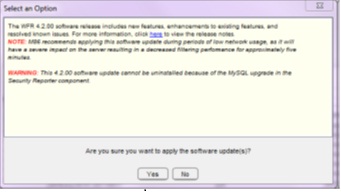
                  Softwareupdate installation dialog box


3. Click Yes toopen the EULA dialog box:
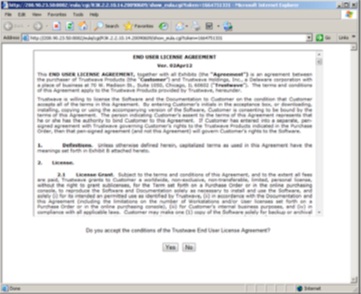


                                       EULA dialog box


4. After reading the contents of the End User License Agreement,click Yes if you agree to its terms. This action closes the EULA dialog box and opens the alert box verifying the software update application process:

To verify whether or not a software update has been successfully applied, go to System> Diagnostics > View Log File window and select “Software Update Log(patch.log)”. See View Log File window for more information.


5. After you have applied the update you should receive a connection to the server failed error. At this point log out of the Filter and try logging in after a few minutes have passed as you won’t be able to connect to the Filter until the patch has been applied.
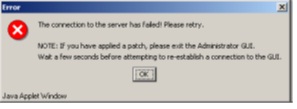
 

                      Connection failure alert box

Notes:

If the Eula agreement doesn’t open up ,double check the popup settings for your web browse


To contact LevelBlue about this article or to request support:


Rate this Article:
     

Add Your Comments


Comment submission is disabled for anonymous users.
Please send feedback to Trustwave Technical Support or the Webmaster
.