This article applies to:
Symptoms:
- Download is blocked and the following message is presented to the user:
HTTP Error Status: 403 Forbidden
Error Reason: Response body too large Please contact your system administrator
Cause:
- SWG proxy is limited to downloading/uploading files up to 2GB in size. This limit is configured in the Downloads tab under Administration > System Settings > SWG Devices > Scanning Server > General node:
Resolution:
If SWG proxy is expected to deal with many large files, it may help to bypass scanning for those files. This can be done by creating two additional rules in the Security Policy, as detailed below.
Both the rules make sure that the files are not scanned. The first rule allows the file to download through SWG immediately, while the second rule needs to download the file first to evaluate the content size.
It is important to position these rules properly in the policy. For better performance, place the rules below the Allow Trusted Sites and Block Blacklisted Sites rules.
First Rule
The first rule should bypass scanning for large files based on the value in the content-length header field associated with the file in the transaction.
1. Create a custom HTTP header as shown below. Set the value relevant to your SWG implementation:
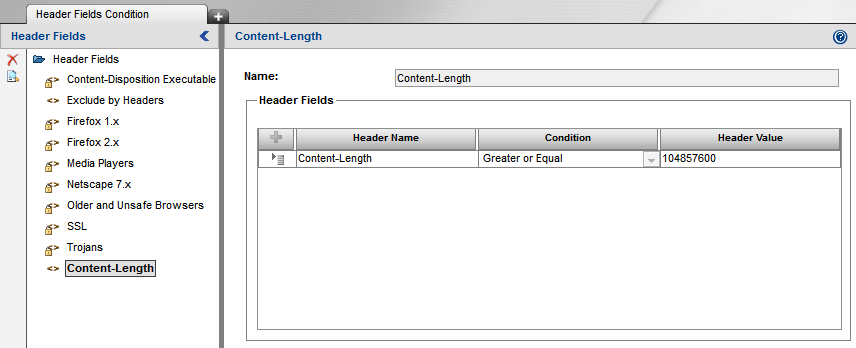
Note that the content-length header value should be set in bytes.
2. Create a new rule in the policy and add the new custom header as a condition for the rule.
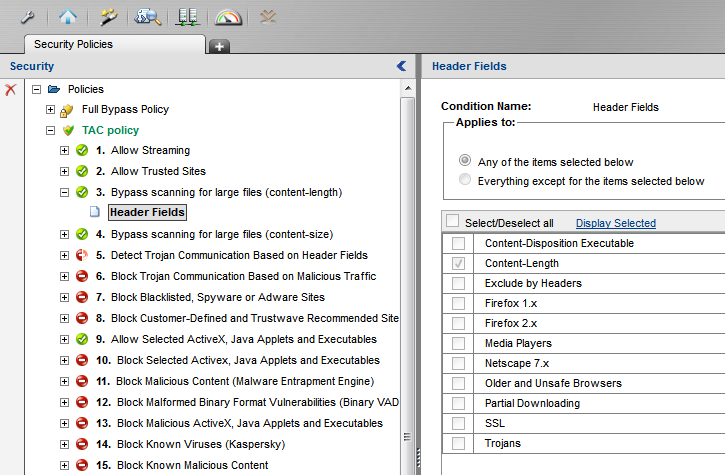
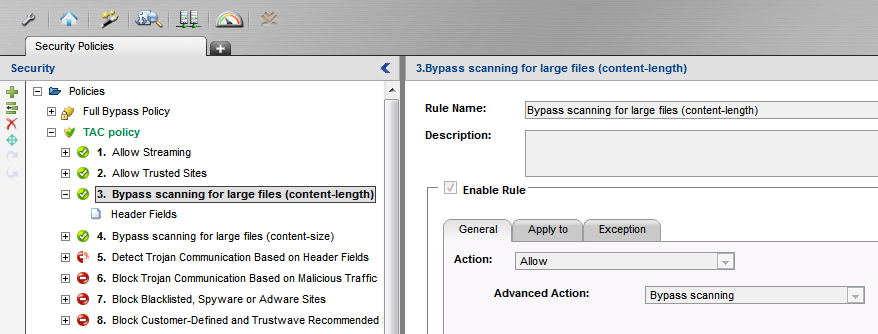
3. Make sure the rule Action is set to Allow and Advanced Action is set to Bypass scanning:
Second Rule
It is possible that a file in a Web transaction will not have a content-length header specified for it. As a result, the rule we just created will not bypass scanning for such file.
For this reason we need a second rule to bypass scanning for large files based on the content size value.
1. Use one of the default Content Size conditions available in the SWG OS, or create a new one to make it consistent with the rule above.
Content Size conditions are under:
Version 10.x: Policies > Condition Settings > Content Size
Version 11.x: Policies > Condition Elements > Content Size
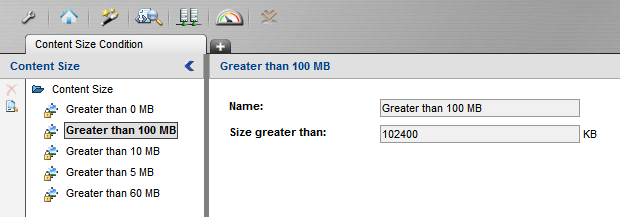
2. Create a new rule in the policy and use Content Size as a condition for the rule.
Notes:
Important: Content-length header value is set in bytes, content-size condition value is set in kilobytes.
